
split PDF into smaller files. PDF files are everywhere—ebooks, reports, invoices, study materials, and official documents. But sometimes, you end up with a massive PDF that’s difficult to manage, upload, or share. That’s where splitting a PDF into smaller files becomes incredibly useful.
Whether you’re a student trying to separate chapters, a professional handling reports, or a website owner optimizing downloads, knowing how to split PDFs efficiently can save time and effort.
In this complete guide, you’ll learn why PDF splitting is important, different methods to do it, and step-by-step instructions using both online and offline tools. split PDF into smaller files
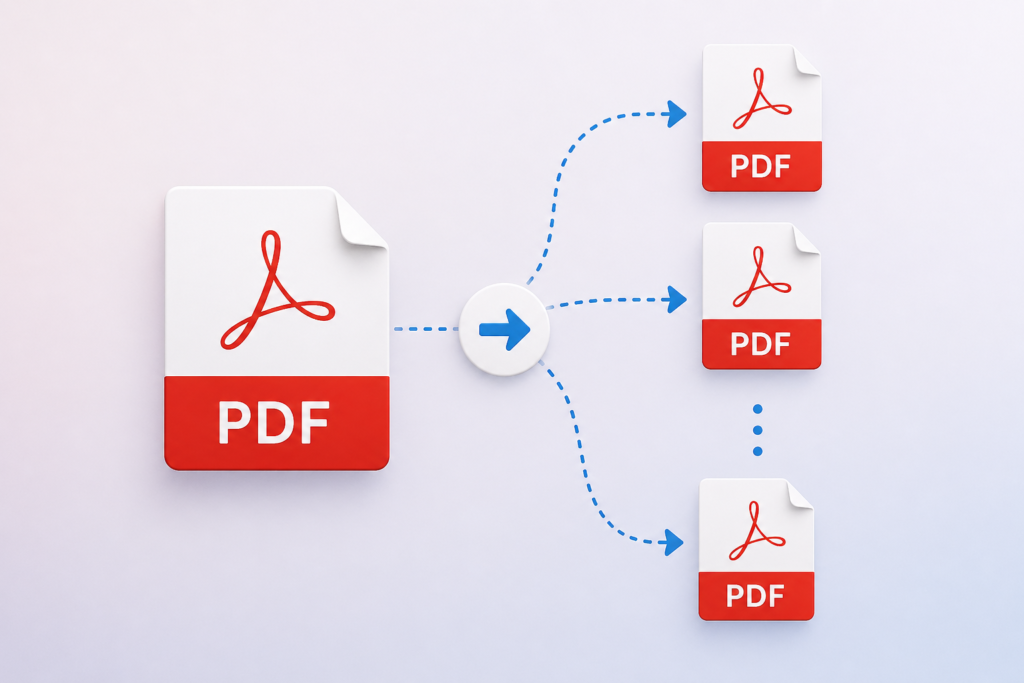
Why Split a Large PDF?
Before jumping into the process, let’s understand why splitting a PDF is necessary.
1. Easier Sharing
Large files are hard to email or upload. Splitting them allows you to send only the required sections.
2. Better Organization
Instead of scrolling through hundreds of pages, you can organize documents into smaller, relevant sections.
3. Faster Loading
Smaller PDFs open faster on devices, especially mobiles.
4. Selective Access
You can extract specific pages without sharing the entire document.
5. Storage Optimization
Large files consume more storage and bandwidth.
Common Ways to Split a PDF
There are several ways to split a PDF depending on your device and preferences:
- Online tools (fast and easy)
- Desktop software (more control and privacy)
- Built-in features (limited but useful)
- Mobile apps (on-the-go solutions)
Let’s explore each method in detail. split PDF into smaller files
Method 1: Split PDF Using Online Tools
Online tools are the easiest and most popular way to split PDFs. You don’t need to install anything—just upload your file and split it.
Step-by-Step Guide
- Open any PDF splitting website (like Smallpdf, ILovePDF, etc.)
- Upload your PDF file
- Choose how you want to split:
- Extract specific pages
- Split by page range
- Split every page
- Click “Split” or “Process”
- Download your new files
Advantages
- No installation needed
- Works on any device
- Beginner-friendly
Disadvantages
- Requires internet
- Privacy concerns for sensitive files
Method 2: Split PDF Using Desktop Software
If you want more control and security, desktop tools are a better option.
Popular Software Options
- Adobe Acrobat
- PDFsam (free)
- Foxit PDF Editor
Step-by-Step Using Desktop Software
- Open your PDF in the software
- Look for the “Split” or “Organize Pages” option
- Choose splitting method:
- By page number
- By file size
- By bookmarks
- Select output folder
- Click “Split”
Advantages
- Works offline
- More customization
- Better for large files
Disadvantages
- Some tools are paid
- Installation required
Method 3: Split PDF Using Google Chrome
Many people don’t realize that Chrome can also split PDFs. split PDF into smaller files
Steps
- Open PDF in Chrome
- Press Ctrl + P (Print option)
- In destination, select “Save as PDF”
- Enter page range (e.g., 1–10)
- Click Save
Repeat for other sections.
Why This Works
You’re essentially creating new PDFs by printing selected pages.
Pros
- No software needed
- Quick and simple
Cons
- Manual process
- Not ideal for very large files
Method 4: Split PDF Using Microsoft Word
If your PDF is editable, you can use Word.
Steps
- Open PDF in Word
- Word converts it into editable format
- Copy required sections
- Save each section as a new PDF
Limitations
- Formatting may change
- Not suitable for scanned PDFs
Method 5: Split PDF on Mobile
If you’re using a smartphone, there are many apps available.
Popular Apps
- Adobe Acrobat Reader
- Xodo PDF
- PDF Utils
Steps
- Open PDF in app
- Choose “Split” option
- Select pages
- Save new file
Benefits
- Convenient
- Useful for quick edits
Different Ways to Split a PDF
Not all splitting methods are the same. Here are common options:
1. Split by Page Range
Example:
- Pages 1–10 → File 1
- Pages 11–20 → File 2
Best for chapters or sections.
2. Extract Specific Pages
Example:
- Only pages 5, 12, and 18
Useful when you need selective content.
3. Split Every Page
Each page becomes a separate PDF.
Best for forms or individual records.
4. Split by File Size
Some tools allow splitting based on size (e.g., 5MB each).
Useful for email attachments.
5. Split by Bookmarks
Advanced method using document structure.
Tips for Better PDF Splitting
1. Plan Before Splitting
Know exactly which pages you need.
2. Rename Files Properly
Use names like:
- Chapter-1.pdf
- Invoice-April.pdf
3. Keep Backup
Always keep the original file safe.
4. Check Output
Ensure pages are correct after splitting.
5. Use Offline Tools for Sensitive Files
Avoid uploading confidential documents online.
Common Problems and Solutions
Problem 1: File Too Large to Upload
Solution: Use desktop software.
Problem 2: Pages Missing After Split
Solution: Double-check page range before splitting.
Problem 3: Formatting Issues
Solution: Avoid converting PDFs unnecessarily.
Problem 4: Slow Processing
Solution: Use lightweight tools or split in smaller parts.
Best Tools for Splitting PDFs (Quick List)
Online Tools
- Smallpdf
- ILovePDF
- PDF2Go
Offline Tools
- Adobe Acrobat
- PDFsam
- Foxit
Mobile Apps
- Adobe Acrobat Reader
- Xodo
Security Tips
When handling PDFs, especially official or personal documents:
- Avoid uploading confidential files to unknown websites
- Use trusted platforms only
- Prefer offline tools for sensitive data
- Delete files from online tools after use
Use Cases of PDF Splitting
Students
Split textbooks into chapters for easier study.
Businesses
Separate reports, invoices, or contracts.
Bloggers & Website Owners
Provide downloadable sections instead of large files.
Teachers
Share specific lessons instead of full books.
Advanced Tip: Automating PDF Splitting
If you frequently split PDFs, consider automation:
- Use batch processing tools
- Use scripts (advanced users)
- Integrate into workflows
This saves time when dealing with multiple files.
Conclusion
Splitting a large PDF into smaller files is a simple yet powerful skill that improves productivity, organization, and sharing efficiency.
Whether you use an online tool for quick results, desktop software for more control, or even built-in features like Chrome, there’s a method for everyone.
The key is to choose the right approach based on your needs:
- Quick and easy → Online tools
- Secure and powerful → Desktop software
- Basic needs → Built-in options
Once you get used to it, managing PDFs becomes effortless.