
Large PDF files slow you down. They fail to attach in emails, take forever to upload, and eat up storage. The good news is you do not need expensive software or a tech background to fix this. You can compress a PDF online free in under a minute using nothing but your browser.
In this guide, you will learn exactly how to compress PDF files online, which free tools work best, and how to get the smallest file size without losing readability.
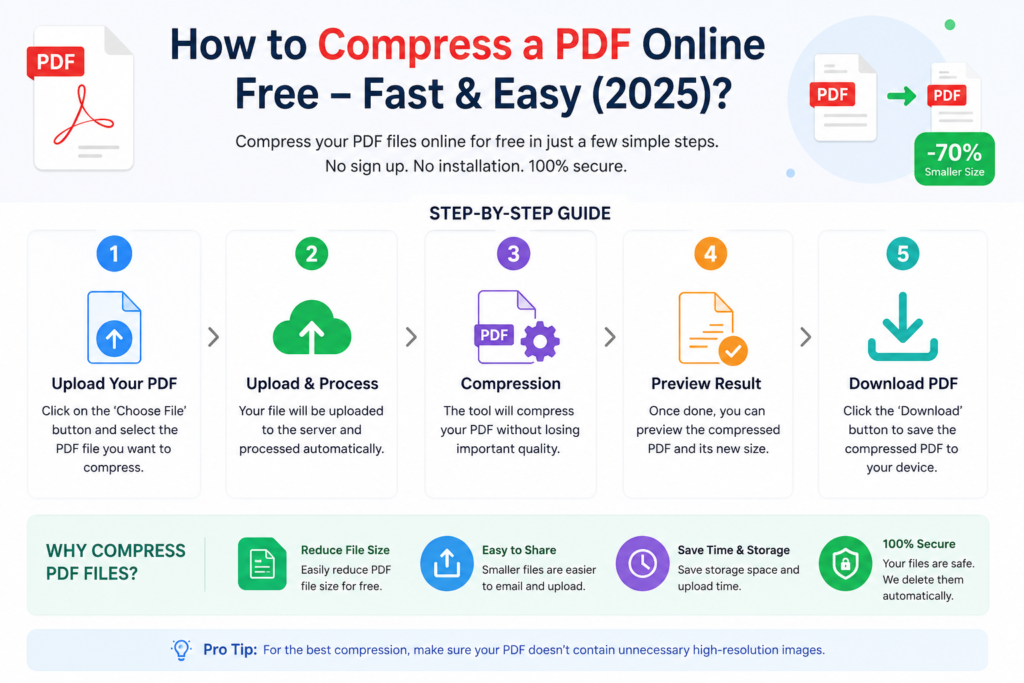
Why You Need to Compress a PDF: Compress a PDF online free
Every day, millions of people send PDFs — resumes, invoices, reports, presentations, and eBooks. But large PDFs create real problems:
- Gmail and Outlook block attachments over 25MB. A bloated PDF bounces right back.
- WhatsApp limits files to 100MB. Even that fills up fast with high-res scans.
- Slow upload speeds waste time when you share on Google Drive, Dropbox, or company portals.
- Storage limits on free cloud plans disappear quickly with uncompressed files.
Compressing your PDF solves all of this. You reduce the file size, keep the content intact, and share files instantly — without paying a rupee.
What Happens When You Compress a PDF Online? compress a PDF online free
When you compress a PDF, the tool does several things behind the scenes:
- It reduces the resolution of embedded images (the biggest size contributor in most PDFs).
- It removes redundant metadata and embedded fonts that the viewer does not need.
- It applies lossless or lossy compression algorithms to shrink the binary data.
- It strips unused objects from the PDF structure.
The result? A file that is 30% to 90% smaller, depending on content type. Image-heavy PDFs see the biggest reduction. Text-only PDFs compress less but still get leaner. Compress a PDF online free
Best Free Tools to Compress a PDF Online compress a PDF online free
You do not need to install anything. These tools run entirely in your browser.
1. iLovePDF
URL: ilovepdf.com
iLovePDF is one of the most popular PDF tools in the world. It gives you three compression levels — Extreme, Recommended, and Less compression. The Recommended option hits the sweet spot between file size and visual quality.
How to use it:
- Open ilovepdf.com/compress_pdf in your browser.
- Click Select PDF file or drag and drop your file.
- Choose a compression level.
- Click Compress PDF.
- Download the compressed file.
iLovePDF processes files up to 100MB for free and does not store your files after one hour. Compress a PDF online free
2. Smallpdf
URL: smallpdf.com
Smallpdf is clean, fast, and beginner-friendly. The free plan allows you to compress two PDFs per hour. It uses a strong compression algorithm and shows you the before-and-after file size instantly.
How to use it:
- Go to smallpdf.com/compress-pdf.
- Upload your PDF by clicking or dragging.
- Smallpdf compresses it automatically.
- Click Download to save the compressed file.
You can also connect Google Drive or Dropbox to upload directly from the cloud. Compress a PDF online free
3. Adobe Acrobat Online (Free Tier)
URL: acrobat.adobe.com/in/en/acrobat/online/compress-pdf.html
Adobe invented the PDF format. Their free online compressor does a reliable job for most documents. The free version limits you to a certain number of compressions per month, but it works well for occasional use.
How to use it:
- Visit the Adobe Acrobat Compress PDF page.
- Click Select a file and upload your PDF.
- Adobe compresses it automatically.
- Sign in (free Adobe ID required) to download.
Adobe is a solid choice when you want brand trust and consistent output quality. Compress a PDF online free
4. PDF2Go
URL: pdf2go.com
PDF2Go gives you more control. You can choose between Preset Quality levels (Screen, eBook, Print, or Prepress) or enter a custom DPI for images. This makes it great for users who know exactly what quality they need.
How to use it:
- Go to pdf2go.com/compress-pdf.
- Upload your file from your device, Google Drive, Dropbox, or a URL.
- Select a compression preset or adjust settings manually.
- Click Start and then Download.
5. Compress PDF (compresspdf.online)
This is a no-frills, fast tool with zero sign-up required. It compresses your PDF automatically and shows you the compressed size immediately. Ideal for quick, one-click compression when you do not want any settings or menus.
Step-by-Step: How to Compress a PDF Online Free (General Process)
Regardless of which tool you use, the process follows these steps:
Step 1: Open the tool in your browser. Go to any of the tools listed above. You do not need to create an account for most of them.
Step 2: Upload your PDF. Click the upload button or drag and drop your file into the browser window. Most tools accept files from your device, Google Drive, or Dropbox.
Step 3: Choose your compression level (if available). Higher compression = smaller file, but slightly reduced image quality. For text-heavy documents, even extreme compression looks fine. For photo-rich PDFs, use medium or light compression.
Step 4: Click Compress. The tool processes your file in the cloud. This usually takes 5–30 seconds, depending on file size.
Step 5: Download your compressed PDF. Click the Download button. Some tools also give you a shareable link or let you save directly to cloud storage.
Step 6: Compare file sizes. Check your original vs. compressed size. A good result is at least 30–50% smaller for image-heavy files.
How Much Can You Compress a PDF?
| PDF Type | Average Compression Ratio |
|---|---|
| Scanned document (image-heavy) | 50–90% smaller |
| Presentation with graphics | 40–70% smaller |
| Text-only document | 10–30% smaller |
| Mixed text + images | 30–60% smaller |
Results vary based on the original file quality and the tool you use.
Tips to Get the Smallest PDF File Size
Use these tips to get the best results when you compress a PDF online free:
Use the right compression level. Do not always choose “Extreme” compression. For documents you plan to print, choose “Recommended” or “Medium” to preserve clarity.
Compress before you scan. If you are creating a PDF from a scanner, set the scanner DPI to 150–200 for documents you share digitally. 300 DPI is for print only and creates large files.
Remove unnecessary pages first. Delete blank pages, duplicate pages, or pages you do not need before compressing. Fewer pages = smaller file.
Use JPEG compression for image-heavy PDFs. Some tools allow you to choose between JPEG and lossless PNG compression for embedded images. JPEG shrinks image-heavy files far more aggressively.
Avoid compressing an already-compressed PDF repeatedly. Each round of lossy compression degrades quality slightly. Compress once and keep the original.
Is It Safe to Compress a PDF Online?
This is a common and legitimate concern, especially for sensitive documents like legal contracts, financial statements, or personal IDs.
Here is what you need to know:
- Reputable tools like iLovePDF, Smallpdf, and Adobe delete your files within 1–24 hours of processing. They do not use your content.
- Always check the privacy policy before uploading confidential documents.
- For sensitive files, use offline tools like PDF24 Desktop, LibreOffice, or Adobe Acrobat (paid) to compress without uploading to any server.
- Look for HTTPS in the URL — all reputable tools use encrypted connections.
For everyday documents — resumes, brochures, blog content, eBooks — online compression tools are completely safe to use.
Compress a PDF on Mobile (Without an App)
You do not need an app to compress a PDF on your phone. All the tools above work in your mobile browser too.
On Android:
- Open Chrome and go to ilovepdf.com or SmallPDF.com.
- Tap the upload button.
- Select your PDF from Files or Google Drive.
- Compress and download.
On iPhone/iPad:
- Open Safari and visit any of the tools above.
- Upload from the Files app.
- Download the compressed file back to Files.
If you want a dedicated app, PDF Compressor by PDF Tools on the Play Store and PDF Expert on iOS both offer free compression features.
Free vs. Paid PDF Compression: What Is the Difference?
| Feature | Free Online Tools | Paid Tools (Adobe, Nitro) |
|---|---|---|
| Cost | ₹0 | ₹500–₹2000/month |
| Batch compression | Limited or no | Yes |
| File size limit | 25–100MB typically | Unlimited |
| Compression quality control | Basic | Advanced |
| Privacy | Files deleted after processing | Local processing available |
| Offline use | No | Yes |
For most creators, bloggers, students, and small business owners, free online tools are more than enough.
Common Problems and Fixes
Problem: The compressed PDF looks blurry. Fix: Use “Light” or “Recommended” compression instead of “Extreme.” The tool is reducing image quality too aggressively.
Problem: The file size did not reduce much. Fix: Your PDF may already be optimized, or it may contain mostly text. Try a different tool for a second opinion.
Problem: The tool is not accepting my file. Fix: Check the file size limit. Most free tools cap uploads at 25–100MB. Split large PDFs first, then compress each part.
Problem: Download is not working. Fix: Disable ad blockers temporarily, or try a different browser. Some download triggers get blocked by browser extensions.
Conclusion
You do not need premium software, technical skills, or a paid subscription to compress a PDF online free. Tools like iLovePDF, Smallpdf, and Adobe Acrobat Online give you professional-grade compression in seconds — directly in your browser, at zero cost.
Start with iLovePDF if you want the simplest experience, or use PDF2Go if you want more control over quality settings. Either way, you will cut your file sizes dramatically and share PDFs without the headaches of large files.
Compress smarter. Share faster.
❓ FAQs
Q1: Can I compress a PDF online for free without losing quality? Yes. Most free tools offer a “Recommended” or “Medium” compression mode that significantly reduces file size while keeping text sharp and images readable. Avoid “Extreme” compression for documents that contain important visuals.
Q2: What is the best free tool to compress a PDF online? iLovePDF and Smallpdf are the top choices for most users. Both are free, require no sign-up for basic use, and process files quickly. Adobe Acrobat Online is also reliable if you have a free Adobe account.
Q3: Is it safe to compress a PDF online? Yes, for general documents. Reputable tools like iLovePDF, Smallpdf, and Adobe encrypt your upload and delete your files within 1–24 hours. Avoid uploading highly confidential files to any online tool — use desktop software instead.
Q4: How small can I compress a PDF? A scanned PDF (image-heavy) can often be reduced by 70–90%. A text-only PDF typically compresses by 10–30%. Results depend on the original content and the compression level you choose.
Q5: Can I compress a PDF on my phone for free? Yes. You can use iLovePDF or Smallpdf directly in your mobile browser — no app download required. Just open the site, upload your PDF, and download the compressed version.
Q6: Does compressing a PDF damage the file? No, compressing does not damage the file structure. However, lossy image compression reduces image resolution slightly. Always keep a backup of the original before compressing.
Q7: Can I compress multiple PDFs at once for free? Most free plans limit batch processing. iLovePDF allows batch compression with a free account. For high-volume batch compression, consider a paid plan or use a desktop tool like PDF24.