
merge PDF files online free. You have five separate PDF files sitting in your downloads folder — a contract, an invoice, a cover letter, an ID scan, and a permission form. Your client needs them as one clean document by 3 PM. What do you do?
You merge PDF files online free — without downloading software, without paying a subscription, and without wasting time. This guide shows you exactly how to do it, which tools work best, and what to watch out for so you never lose a file or compromise your data.
Whether you use a Windows PC, a Mac, an Android phone, or an iPhone, merging PDFs online takes less than two minutes when you know the right steps. Let’s get into it. merge PDF files online free
What Does Merging PDF Files Mean?
Merging PDFs means combining two or more separate PDF documents into a single file. The result is one unified PDF that preserves all the original pages, images, text, and formatting from every source file.
People merge PDFs for dozens of practical reasons:
- Combining chapters of a report or ebook
- Bundling invoices and receipts for accounting
- Sending multiple ID documents as one attachment
- Merging contract pages that arrived as separate scans
- Assembling a portfolio or press kit into one file
The good news is that you don’t need Adobe Acrobat Pro or any paid desktop software to do this. Free online PDF mergers handle the job in seconds.
Best Free Online Tools to Merge PDF Files
Several reliable platforms let you merge PDF files online free. Here are the top options that Indian users and creators rely on daily:
1. Smallpdf
Smallpdf is one of the most popular PDF tools in the world. It offers a clean drag-and-drop interface and processes files quickly. The free plan allows you to merge PDFs a limited number of times per day, but it covers most casual needs. It uses HTTPS encryption and automatically deletes your files after processing. merge PDF files online free
- Website: smallpdf.com
- File size limit: Up to 5 GB on paid; reasonable on free
- Devices: Works on desktop and mobile browsers
2. iLovePDF
iLovePDF is a favorite for users who need a straightforward merging experience with no friction. It lets you upload multiple PDFs, reorder them by dragging, and download the merged file immediately. The free version handles most everyday tasks without requiring an account.
- Website: ilovepdf.com
- Extra features: Compress, split, convert, rotate — all free
- Languages: Supports multiple languages including Hindi interface options
3. PDF24 Tools
PDF24 is a Germany-based platform with a strong privacy policy. It processes PDFs in the browser itself rather than on remote servers for many operations, which makes it a safer choice when you handle sensitive documents. It also has a free desktop app if you prefer offline merging. merge PDF files online free
- Website: tools.pdf24.org
- Privacy: No registration required; files processed locally
- Speed: Very fast even for large multi-file merges
4. Sejda PDF
Sejda gives you a clean, no-ads experience with a generous free tier. You can merge up to 200 pages or files under 50 MB for free. It auto-deletes uploaded files after two hours, which adds a layer of data safety. merge PDF files online free
- Website: sejda.com
- Free limit: 3 tasks per hour; up to 200 pages
- Special feature: Edit PDFs and merge in the same session
5. Adobe Acrobat Online (Free Version)
Adobe’s own free online tool lets you merge PDFs without installing Acrobat Pro. You get limited free merges per month, but the output quality is excellent because Adobe created the PDF format itself. A free Adobe account unlocks slightly more functionality. merge PDF files online free
- Website: acrobat.adobe.com/in
- Trust level: Very high — official Adobe product
- Best for: Users who already have an Adobe account
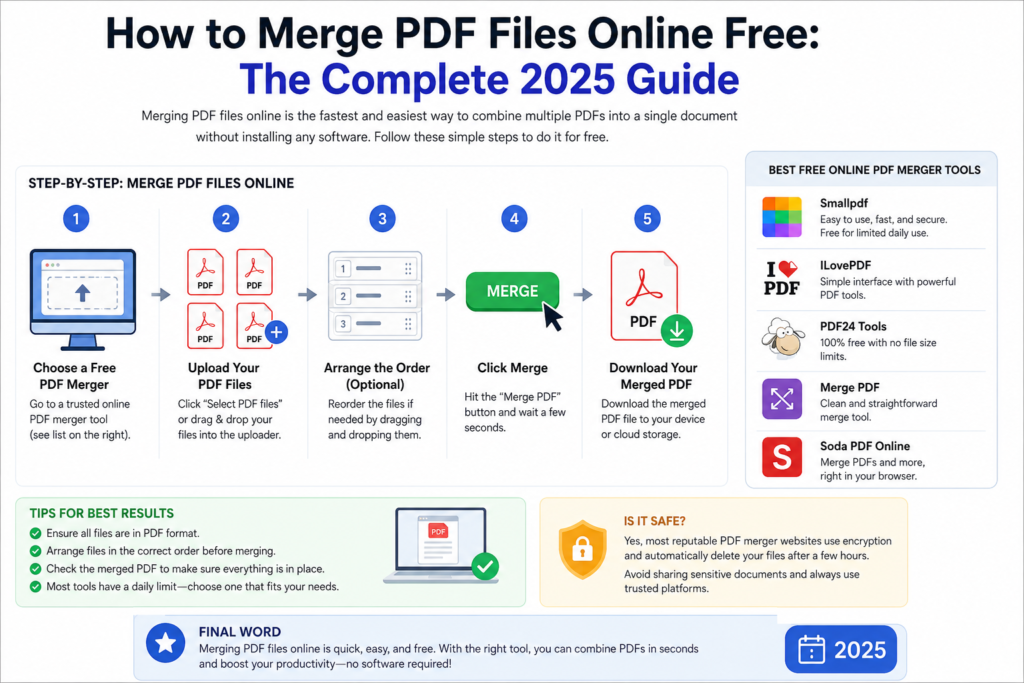
How to Merge PDF Files Online Free: Step-by-Step
The steps below work for any of the tools listed above. We’ll use iLovePDF as the example because it has the simplest interface for first-time users.
Step 1: Open the Merge PDF Tool
Go to ilovepdf.com on your browser. Click on Merge PDF from the main menu. This opens the upload area. You don’t need to create an account for basic merging. merge PDF files online free
Step 2: Upload Your PDF Files
Click the red Select PDF files button or drag your files directly into the upload box. You can upload multiple files at once. The tool accepts files from your device, Google Drive, and Dropbox. Select all the PDFs you want to combine in this step. merge PDF files online free
Step 3: Reorder the Files
Once your files upload, they appear as thumbnail previews. Drag them into the order you want them to appear in the final merged document. The file at the top of the list becomes the first section of your merged PDF.
Take a moment here — the order you set now is the order your recipient sees. Double-check it before proceeding.
Step 4: Click Merge PDF
Hit the Merge PDF button. The tool processes your files in seconds. Larger files or m ore documents may take slightly longer, but most merges complete within 5 to 15 seconds. merge PDF files online free
Step 5: Download Your Merged File
A Download button appears once processing completes. Click it to save your merged PDF to your device. Rename it immediately so you don’t confuse it with the original files. Most tools also show a QR code you can scan to download directly on your phone.
That’s it. Five steps, under two minutes, zero cost. merge PDF files online free
How to Merge PDFs Online Free on Mobile (Android & iPhone)
Indian creators often work primarily from smartphones. The good news is that every tool listed above works in mobile browsers without any app download. merge PDF files online free
On Android
- Open Chrome or any browser on your Android phone
- Go to ilovepdf.com or smallpdf.com
- Tap Merge PDF
- Tap Select PDF files and choose files from your phone storage or Google Drive
- Drag to reorder, then tap Merge PDF
- Download the merged file to your device
On iPhone
- Open Safari or Chrome on your iPhone
- Visit sejda.com or pdf24.org
- Tap the Merge PDF option
- Tap to upload files from Files app or iCloud Drive
- Set the order, then merge and download
Both platforms also let you share the download link directly via WhatsApp, Gmail, or any other app — which is useful when you need to send the merged PDF immediately. merge PDF files online free
Pro Tips for Merging PDFs Online
Use these tips to get better results and avoid common mistakes:
- Check file names before uploading. Rename confusing files like ‘scan001.pdf’ to meaningful names so you can identify them in the tool’s thumbnail view.
- Compress large PDFs first. If your files are above 10 MB each, run them through a PDF compressor on the same platform before merging. This keeps your final merged file at a manageable size.
- Use a private browsing window for sensitive documents. Your ISP and browser history won’t log the upload. Choose tools like PDF24 that process files locally. merge PDF files online free
- Verify page count after merging. Open the downloaded file immediately and scroll through it to confirm all pages are present and in the right order.
- Avoid uploading password-protected PDFs. Most free tools cannot merge locked PDFs. Remove the password first using a PDF unlock tool, then merge.
- Don’t close the browser tab during processing. Even on fast connections, closing the tab mid-process corrupts the output. merge PDF files online free
Is It Safe to Merge PDF Files Online?
This is a question every smart user should ask. When you upload a PDF to any online tool, that file travels to a third-party server. Here is what you need to know:
What Reputable Tools Do
- Use HTTPS encryption during file transfer
- Auto-delete uploaded files after 1 to 24 hours
- Do not store or sell your document content
- Comply with GDPR and similar privacy regulations
What You Should Avoid
- Uploading Aadhaar cards, PAN cards, or government IDs to unknown tools
- Using tools with no privacy policy listed
- Trusting sites that show your files to ads or require account creation just to download
For everyday documents like reports, presentations, and portfolios, free online tools are perfectly safe. For highly sensitive documents — legal agreements, medical records, financial statements — either use PDF24 (which processes locally) or invest in a paid desktop tool.
Free PDF Merger Tools: Quick Comparison
| Tool | Free Limit | File Size | Privacy | Mobile |
| iLovePDF | Unlimited basic | 100 MB | Server-side | ✓ Yes |
| Smallpdf | 2/day free | 5 GB paid | Server-side | ✓ Yes |
| PDF24 | Unlimited | No stated limit | Local processing | ✓ Yes |
| Sejda | 3/hour | 50 MB | Auto-delete 2h | ✓ Yes |
| Adobe Online | Limited/month | 100 MB | Adobe servers | ✓ Yes |
When You Should Upgrade to a Paid Tool
Free online tools cover 90% of everyday PDF merging needs. But there are situations where a paid solution makes more sense:
- You merge PDFs more than 10 times per day for business use
- You work with PDFs larger than 50–100 MB regularly
- You need to merge password-protected PDFs programmatically
- You require batch merging of 50+ files at once
- You handle confidential client data that cannot leave your local machine
In these cases, tools like Adobe Acrobat Pro, Nitro PDF, or UPDF offer more control, higher file limits, and better privacy guarantees.
Frequently Asked Questions (FAQs)
Q1. Can I merge PDF files online for free without creating an account?
Yes. Tools like iLovePDF, PDF24, and Sejda let you merge PDFs without signing up. You simply upload your files, merge, and download — no email required.
Q2. How many PDF files can I merge at once for free?
Most free tools allow you to merge between 2 and 20 files in a single session. PDF24 and iLovePDF are the most generous, allowing unlimited merges on their free plans. If you need to combine more than 20 files, merge them in batches and then merge the results.
Q3. Does merging PDFs online reduce the quality or image resolution?
No. A standard merge operation preserves the original quality of every page. If you notice quality loss, the tool may have applied automatic compression. Use Sejda or PDF24 to avoid unwanted compression during merging.
Q4. Can I merge PDFs on my phone without downloading an app?
Absolutely. Visit ilovepdf.com or pdf24.org on your mobile browser. Both sites work perfectly on Android and iPhone without requiring any app installation. The mobile browser interface is nearly identical to the desktop version.
Q5. Is it safe to merge Aadhaar or PAN card scans online?
We recommend against uploading sensitive Indian government documents like Aadhaar or PAN cards to online tools. Use PDF24’s local processing mode (which keeps files on your device) or merge such documents offline using a desktop application.
Q6. What happens to my files after I merge them online?
Reputable tools delete your uploaded files automatically — usually within 1 hour (Smallpdf) to 2 hours (Sejda) to 24 hours (iLovePDF). Always check the tool’s privacy policy before uploading sensitive documents.
Q7. Can I reorder pages when merging PDFs online?
Yes. Every major free tool lets you drag and drop your uploaded files to reorder them before merging. Some tools, like Sejda, even let you rearrange individual pages across different source files — giving you full control over the final document structure.
Q8. Why is my merged PDF larger than the combined size of the original files?
This happens because merging adds a small amount of metadata, cross-reference tables, and embedded fonts from multiple source files. Run your merged file through a free PDF compressor on the same platform to reduce the file size without any visible quality loss.
Q9. Can I merge a PDF with a Word document or image file?
Not directly. You must first convert your Word document or image (JPG, PNG) to PDF format, and then merge all the PDFs together. Tools like iLovePDF and Smallpdf offer both conversion and merging in the same platform, so you can do both steps back-to-back.
Q10. Does merging PDFs work on slow internet connections?
Yes, though uploads take longer on slow connections. For slow internet, use PDF24’s local processing mode, which merges files directly in your browser without sending them to a server. This makes it the fastest option on low-bandwidth connections.
Copy the schema below and paste it into your WordPress theme’s custom header scripts or use the Rank Math / Yoast schema generator:
Conclusion
Merging PDF files online free is faster and easier than most people realize. Tools like iLovePDF, PDF24, Sejda, and Smallpdf give you everything you need — a clean drag-and-drop interface, instant processing, and automatic file deletion for privacy.
For daily use, iLovePDF and PDF24 are the top recommendations. iLovePDF wins for ease of use, and PDF24 wins for privacy and offline-capable local processing. Both are completely free, work on all devices, and require no account.
Bookmark your favorite tool, follow the five-step process in this guide, and you’ll never waste time hunting for a PDF merger again.
Published on Digital Creator Hub | digitalcreatorhub.online