
reorder PDF pages online. Have you ever finished scanning a stack of papers only to find the pages came out in the wrong order? Or merged two PDFs and ended up with chapters jumbled out of sequence? You’re not alone. Page order problems are one of the most common PDF headaches, whether you’re dealing with a scanned contract, a school assignment, or a business report that needs to flow logically from start to finish.
The good news is that you don’t need Adobe Acrobat or any expensive software to fix this. With a free online tool to reorder PDF pages, you can drag, drop, and rearrange your document in seconds, directly from your browser, without installing anything or creating an account.
In this guide, we’ll walk through exactly how to reorder PDF pages online, why it matters, and how to avoid the common mistakes that trip people up when reorganizing documents. reorder PDF pages online
Why You Might Need to Reorder PDF Pages
PDFs are everywhere in modern work and study, but they don’t always arrive in the order you need. Here are some of the most common situations where reordering pages becomes necessary:
Scanned documents come out of sequence. If you’ve ever used a scanner with an automatic document feeder, you know pages can jam, skip, or get fed in reverse order. The result is a PDF where page 1 might actually be page 10, and you need to fix it before sharing or filing the document.
Merged PDFs need reorganizing. When you combine multiple PDFs into one file, the sections often don’t land in the order you want. A merged report might need its appendix moved to the back, or a combined presentation might need slides shuffled to match a new agenda.
Academic and professional documents need a logical flow. Theses, dissertations, and business proposals often go through revisions where entire sections get added or restructured. Reordering pages lets you fix the flow without retyping or reformatting the whole document.
Legal and financial documents require specific formatting. Contracts, invoices, and compliance documents often need exhibits, signatures, or supporting pages placed in a precise order to meet legal or regulatory standards.
Presentations and portfolios need the right narrative order. If you’ve exported a slide deck or portfolio to PDF, you might want to lead with your strongest work or restructure the story for a particular audience.
Whatever the reason, manually fixing page order by printing, reshuffling, and rescanning is slow and impractical. An online reordering tool solves this digitally in a fraction of the time. reorder PDF pages online
How to Reorder PDF Pages Online: Step-by-Step
Reordering pages in a PDF using an online tool typically takes less than a minute once your file is ready. Here’s the general process:
Step 1: Upload Your PDF File
Open the tool and upload the PDF you want to rearrange. Most browser-based tools let you either click to browse your files or drag and drop the document directly into the upload window. Your file is usually processed temporarily and not stored long-term, which keeps the process quick and private.
Step 2: View Your Pages as Thumbnails
Once uploaded, the tool generates a thumbnail preview of every page in your document. This visual layout is the key advantage of using an online tool over manual methods, since you can see the actual content of each page rather than guessing based on page numbers alone.
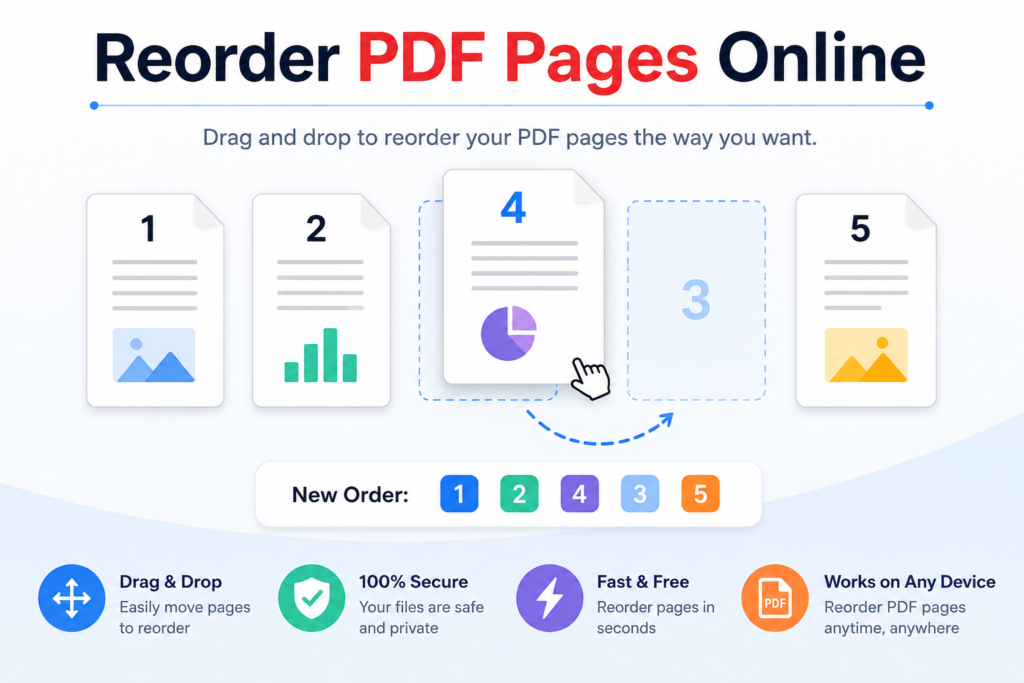
Step 3: Drag and Drop Pages Into the Order You Want
Click and hold a page thumbnail, then drag it to its new position in the sequence. Most tools show a visual indicator of where the page will land as you move it. Repeat this for every page that needs to move. If you’re reordering a large document, look for a tool that lets you reorder multiple pages at once or jump to specific page numbers to speed things up. reorder PDF pages online
Step 4: Double-Check the New Sequence
Before downloading, scroll through the thumbnail view one more time to confirm every page lands where it should. This is especially important for longer documents where it’s easy to lose track of one or two misplaced pages.
Step 5: Download Your Reordered PDF
Once you’re satisfied with the new order, save or export the file. Your original formatting, fonts, and image quality should remain untouched. Only the sequence of pages changes.
What to Look for in a PDF Page Reordering Tool
Not all online PDF tools are created equal. Here’s what separates a genuinely useful tool from a frustrating one:
- No software installation required. A browser-based tool means you can reorder pages from any device, including phones and tablets, without downloading anything.
- No file size or page limits. Some free tools cap the number of pages or file size you can process, which becomes a problem with longer documents.
- No watermarks on the output. Your reordered PDF should look exactly like the original, just with pages in a new sequence.
- No mandatory sign-up. The best tools let you complete the task without creating an account or providing an email address.
- Quality and formatting preserved. The tool should rearrange pages without recompressing images, altering fonts, or degrading resolution.
- Privacy and security. Look for tools that process files securely and don’t store your documents after the session ends. reorder PDF pages online
Common Mistakes to Avoid When Reordering PDF Pages
Even a simple task like reordering pages can go wrong if you’re not careful. Keep these tips in mind:
Don’t skip the preview step. It’s tempting to drag pages around quickly and download immediately, but a quick scroll-through before exporting catches mistakes before they become permanent.
Watch out for duplicate or missing pages. If your PDF was created by merging multiple files, double-check that no pages were accidentally duplicated or dropped during the merge before you start reordering.
Keep a backup of the original file. Always retain a copy of your original PDF before making changes, in case you need to start over or compare versions later.
Be mindful of page numbering printed on the document itself. Reordering the pages in the file doesn’t change any page numbers that are printed as part of the content. If your document has visible page numbers, you may need a separate tool to renumber them after reordering, especially for formal reports or academic papers.
Check linked content like table of contents entries. If your PDF has internal links or a clickable table of contents, reordering pages can sometimes break those links. Review interactive elements after rearranging to make sure everything still points to the right place. reorder PDF pages online
Reordering PDF Pages on Mobile Devices
Many people now handle document tasks entirely from their phones, especially when reviewing scanned receipts, signed contracts, or class notes on the go. A browser-based PDF reordering tool works well for this since there’s no app to install. Simply open your mobile browser, upload the file the same way you would on a desktop, and use touch gestures to drag thumbnails into place. This makes it easy to fix a poorly scanned document moments after scanning it, rather than waiting until you’re back at a computer.
Reordering PDF Pages vs. Other PDF Organization Tasks
It’s easy to confuse “reordering” with other PDF organization features, especially since many tools bundle several functions into one interface. Understanding the difference helps you pick the right tool for the job.
Reordering changes the sequence of existing pages without adding, removing, or modifying content. You’re simply moving page 7 to where page 2 used to be.
Deleting pages removes unwanted pages entirely, such as a blank scan or a duplicate sheet that got picked up by mistake. This is often used alongside reordering, since you might delete a few pages and then rearrange what’s left.
Merging combines two or more separate PDF files into a single document. You’d typically merge first, then reorder, if the combined file doesn’t land in the sequence you want.
Splitting does the opposite of merging: it breaks one PDF into multiple smaller files, such as separating a 50-page report into individual chapters. reorder PDF pages online
Rotating adjusts the orientation of a page, fixing sideways or upside-down scans, which is a different fix than changing where the page sits in the sequence.
Many free online PDF organizers, including this one, combine reordering with these related features so you can clean up an entire document in one session rather than bouncing between separate tools.
A Practical Example: Fixing a Scanned Contract
To see how this works in practice, imagine you’ve just scanned a 12-page signed contract using your phone’s camera or a desktop scanner. Halfway through, you realize pages 5 and 6 were scanned in reverse order, and the signature page ended up second-to-last instead of at the very end. reorder PDF pages online
Here’s how you’d fix it with an online reordering tool:
- Upload the 12-page scanned PDF.
- Locate pages 5 and 6 in the thumbnail view and swap their positions.
- Drag the signature page (currently position 11) down to position 12, so it’s the final page.
- Scroll through all 12 thumbnails one more time to confirm the contract now reads in the correct legal sequence: terms, schedules, exhibits, and finally the signature page.
- Download the corrected file and rename it clearly, such as “Contract_Final_Signed.pdf,” so there’s no confusion with the original scan.
This entire process takes under two minutes once the file is uploaded, compared to the alternative of re-scanning the whole document from scratch. reorder PDF pages online
Why Browser-Based Tools Make Sense for Most Users
Desktop PDF editors like Adobe Acrobat are powerful, but they come with subscription costs and a learning curve that’s overkill for a simple page reordering task. If all you need to do is fix the sequence of a document, installing heavyweight software is unnecessary friction.
Browser-based tools solve this by putting the entire workflow in a tab you can close the moment you’re done. There’s nothing to update, no license to manage, and no risk of leaving unused software cluttering your device. For freelancers, students, and small business owners who handle PDFs occasionally rather than as a daily profession, this lightweight approach is usually the better fit.
It’s also worth noting that browser-based tools tend to work identically across operating systems. Whether you’re on Windows, macOS, Linux, Chrome OS, or a mobile device, the interface and steps stay the same, since everything runs through your browser rather than platform-specific software. reorder PDF pages online
Frequently Asked Questions
Is it free to reorder PDF pages online?
Yes. Most browser-based PDF tools, including this one, let you reorder pages at no cost and without creating an account. You simply upload your file, rearrange the pages, and download the result.
Will reordering pages affect the quality of my PDF?
No, reordering pages should not affect the quality, resolution, or formatting of your document. A good tool only changes the sequence of pages and leaves the content, fonts, and images exactly as they were.
Can I reorder pages in a scanned PDF?
Yes. Scanned PDFs work the same way as any other PDF for reordering purposes, since the tool treats each page as an image or content block regardless of how it was created. This makes it especially useful for fixing scans that came out of a document feeder in the wrong sequence.
Is it safe to upload sensitive documents to reorder pages online?
Reputable online PDF tools use encrypted connections to process your file and typically delete uploaded documents from their servers after a short period. That said, if you’re working with highly sensitive material like legal contracts or financial records, it’s worth checking the specific tool’s privacy policy before uploading.
Can I reorder pages without downloading any software?
Yes, that’s the main advantage of a browser-based tool. You don’t need to install anything on your computer or phone. The entire process happens in your web browser, and you download the finished file directly when you’re done.
What’s the difference between reordering and rotating PDF pages?
Reordering changes the sequence in which pages appear in the document, while rotating changes the orientation of a page, such as turning a sideways scan right-side up. Some tools offer both features together, which is useful when you’re cleaning up a messy scanned document that has both problems at once. reorder PDF pages online
Can I undo changes if I make a mistake while reordering?
Most online tools let you rearrange pages as many times as you like before you finalize and download the file, so you can fix mistakes during the session. However, once you’ve downloaded the new file, you’ll need your original backup copy to start over completely.
How many pages can I reorder at once?
This depends on the specific tool, but many free online PDF reordering tools support documents with dozens or even hundreds of pages without restriction. If you’re working with an unusually large file, it’s a good idea to confirm there’s no page or file size limit before you start.
Can I reorder pages from multiple PDFs into one file?
Some tools let you upload more than one PDF at a time and merge their pages into a single document with your chosen order, while others require you to merge files first and then reorder. If your tool only handles one file, merge your PDFs first using a separate merge tool, then reorder the combined result.
Do I need to know the exact page numbers before I start?
No. Most tools display thumbnail previews of each page, so you can visually identify content and drag pages into place without needing to memorize or note down page numbers in advance.
Will reordering pages change the file size of my PDF?
Generally, no. Since reordering only changes the sequence of existing pages rather than the content itself, the file size should stay roughly the same. If you notice a significant change in size, it may be because the tool also recompressed images during processing, so it’s worth choosing a tool that explicitly preserves original quality.
Can I use a PDF page reordering tool on a Chromebook or tablet?
Yes. Since browser-based tools don’t require installing any software, they work on any device with a modern web browser, including Chromebooks, iPads, and Android tablets. This makes it one of the few PDF editing tasks that’s just as easy to do on a tablet as on a full desktop computer.
Ready to fix your document’s page order? Upload your file now and