
delete pages from pdf. You open a PDF and find three blank pages stuck in the middle. Or a scanned contract has a duplicate page from a printer jam. Or your resume export accidentally included a leftover cover page you don’t need. Whatever the reason, you need to delete pages from a PDF — and you need it done in the next two minutes, not after installing software or creating an account.
You don’t need Adobe Acrobat for this. You don’t need to convert the file, re-save it, or learn a new tool. You just need a fast, free, browser-based PDF page deleter — and that’s exactly what this guide walks you through. delete pages from pdf
Why People Need to Delete PDF Pages
Removing pages from a PDF is one of the most common document tasks, and it shows up in situations like these:
- Scanned documents often pick up blank pages from double-sided scanning settings.
- Merged PDFs sometimes carry over cover sheets, duplicate title pages, or unrelated content from the source files.
- Resumes and portfolios may include placeholder pages exported by mistake.
- Contracts and legal documents sometimes need outdated clauses or superseded pages removed before sharing.
- eBooks and reports frequently need a table of contents page, appendix, or draft section stripped out before final distribution.
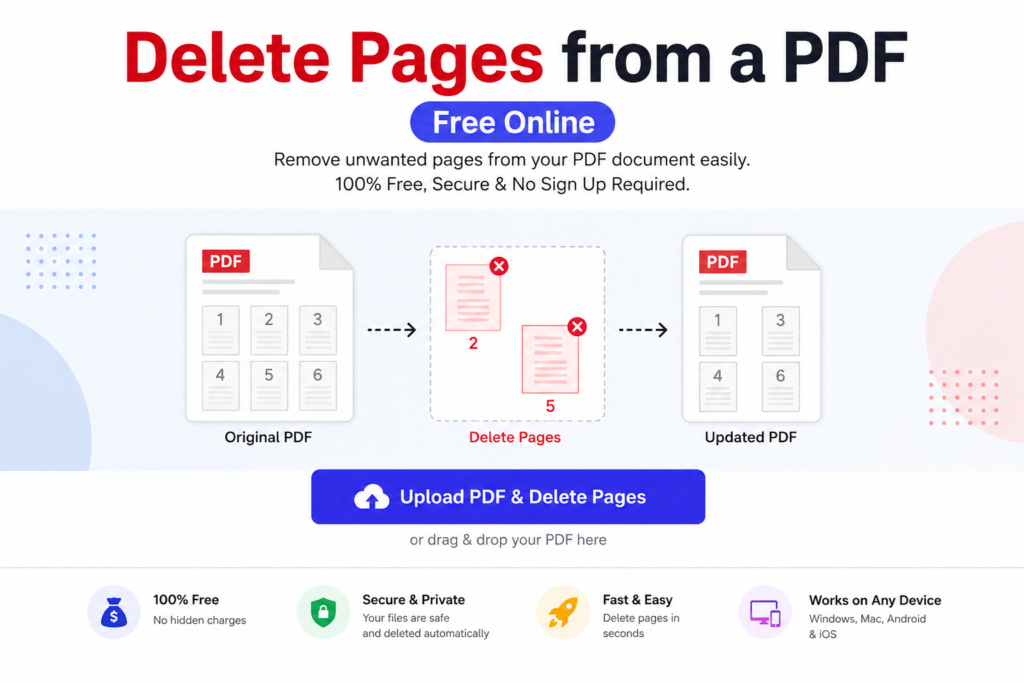
In every case, the fix is the same: open the file, select the pages you don’t want, and delete them — without disturbing the formatting, images, or layout of the pages you keep.
The Problem With Traditional Methods
Most people’s first instinct is to open Adobe Acrobat. But Acrobat’s page-deletion feature sits behind a paid subscription in most modern versions, and even the trial requires an account and a credit card.
The alternatives aren’t much better:
- Desktop software needs installation, takes up storage, and often works on Windows only.
- Print-to-PDF workarounds (printing only the pages you want) destroy bookmarks, hyperlinks, and searchable text.
- Mobile apps frequently inject ads or lock the export behind a paywall.
- Online tools with hidden catches add watermarks, require email signup, or restrict file size to a few pages.
None of these solve the actual problem, which is simple: delete a few pages, keep the rest exactly as it was, and download the result immediately. delete pages from pdf
How to Delete Pages from a PDF Online (Step-by-Step)
Here’s how to do it using a free online tool — no installation, no account, no waiting.
Step 1: Upload Your PDF
Go to the Delete PDF Pages tool and either drag your file into the upload box or click to browse your device. The tool accepts PDFs from your computer, and the upload starts processing instantly.
Step 2: View Your Pages
Once uploaded, every page in the document displays as a thumbnail. You can see exactly what’s on each page — no guessing based on page numbers alone, which matters when you’re trying to spot a blank or duplicate page buried in a 40-page file.
Step 3: Select the Pages to Delete
Click on the thumbnails for the pages you want removed. Selected pages are visually marked, so you can double-check before you commit. You can select a single page, multiple non-consecutive pages, or a continuous range.
Step 4: Confirm and Delete
Click the delete or remove button. The tool instantly strips the selected pages from the document while keeping every remaining page in its original order, formatting, and quality.
Step 5: Download Your Edited PDF
Your new PDF is ready for download immediately. No email required, no waiting period, and no watermark stamped across your document.
The entire process takes under a minute for most files. delete pages from pdf
Key Features That Make This Tool Worth Using
A page-deletion tool should do one job extremely well. Here’s what to look for, and what this tool delivers:
No software installation. Everything runs in your browser. It works the same way on Windows, Mac, Chromebook, or mobile.
No signup or account creation. You upload, edit, and download without handing over an email address or creating yet another password to remember.
No file size restrictions for typical use. Whether you’re trimming a 5-page resume or a 200-page report, the tool handles it.
Original quality preserved. The pages you keep aren’t recompressed, resized, or stripped of embedded fonts and images. What you see is what you download.
Privacy-first processing. Files are processed and then deleted from the server — your document isn’t stored, archived, or shared.
Works on scanned PDFs too. Whether your file is text-based or a scanned image, the page selection and deletion process works the same way.
No watermark. Many “free” tools brand your output with their logo. This one doesn’t touch your content.
Common Use Cases
Job seekers trimming a resume PDF that picked up a stray blank page during export from Word or Google Docs.
Students removing a cover page or appendix from a thesis or assignment before submission.
Small business owners deleting outdated terms pages from a contract template before sending it to a client.
Freelancers stripping unnecessary pages from a scanned invoice or receipt bundle before forwarding it to an accountant.
Authors and publishers removing a draft section or placeholder page from a manuscript before final formatting for KDP or print.
If your work involves PDFs at all, this is a tool you’ll likely reach for more than once.
Tips for a Smooth Experience
- Double-check page numbers before deleting. Thumbnails help, but if your PDF has unusual page ordering, zoom in before confirming.
- Keep a backup of the original file until you’ve verified the edited version opens correctly and contains everything you expect.
- Delete in one pass. If you need to remove pages 3, 7, and 12, select all three before clicking delete rather than repeating the process three times.
- Re-check page numbers in the footer. If your original PDF had manually typed page numbers (not auto-generated), deleting pages won’t update those numbers — you may need a separate page-numbering tool afterward. delete pages from pdf
Frequently Asked Questions
Is it really free to delete pages from a PDF?
Yes. The tool is completely free to use, with no hidden charges, subscription requirements, or limits on how many times you use it.
Do I need to create an account or sign up?
No. There’s no signup, login, or email collection required. You upload your file, edit it, and download the result directly.
Will deleting pages affect the quality of the remaining pages?
No. The remaining pages keep their original resolution, formatting, fonts, and embedded images. Nothing is recompressed or altered.
Is my PDF file safe and private?
Yes. Files are processed for the purpose of editing and are not stored, archived, or shared after processing. Avoid uploading highly sensitive documents to any online tool as a general precaution, but this tool does not retain your files.
Can I delete multiple pages at once?
Yes. You can select multiple individual pages or a continuous range and delete them all in a single action. delete pages from pdf
Does this work on scanned PDFs, or only text-based ones?
It works on both. Since the tool operates on the page level rather than the text content, scanned image-based PDFs are handled the same way as text-based ones.
What’s the maximum file size or page count I can upload?
The tool comfortably handles typical documents, from single-page files to documents running several hundred pages. There’s no aggressive file size cap for standard use cases. delete pages from pdf
Will my PDF get a watermark after I download it?
No. The downloaded file contains only your original content — no added branding, logos, or watermarks delete pages from pdf