
extract pages from pdf free. You finally finish a 60-page PDF report, but you only need pages 12 to 15 for your presentation. Or maybe you’ve got a scanned textbook chapter and want to pull out just the three pages your study group needs. Extracting pages from a PDF sounds simple, but most people either pay for software they barely use or get stuck navigating clunky tools that watermark their files or limit free use.
This guide walks you through exactly how to extract pages from a PDF for free, why you’d want to do it, and which method fits your situation best — whether you’re a student, a YouTuber prepping show notes, a small business owner sharing a contract excerpt, or a podcaster splitting up interview transcripts.extract pages from pdf free
Why Extract Pages from a PDF?
PDFs are the default format for everything from invoices to ebooks to government forms. But a full PDF is often more than what you need to share. Here’s when page extraction actually solves a problem:
You only need part of a document. A 40-page vendor contract might have one clause you need to send to your accountant. Extracting that single page avoids sending the whole file and avoids confusion.
You want to protect privacy. If a PDF contains personal information on some pages and shareable content on others, extracting only the relevant pages keeps sensitive data out of the wrong hands.
You’re organizing content for repurposing. Creators often extract specific pages from research PDFs, reports, or ebooks to repurpose into blog posts, video scripts, or social media carousels.
File size matters. Email attachment limits and slow uploads make large PDFs annoying to share. A 3-page extract uploads and opens far faster than the original 80-page file.
You’re combining content from multiple sources. Extracting individual pages is often the first step before merging them into a new, custom PDF.extract pages from pdf free
Free Tool vs Paid Software: What’s the Real Difference?
Adobe Acrobat Pro and similar paid tools offer page extraction as part of a much larger suite of features. If you’re a casual user just needing to pull a few pages, paying a monthly subscription for that single feature is overkill.
Free online tools, on the other hand, are built specifically for tasks like this. They work directly in your browser, require no software installation, and most reputable ones don’t add watermarks or restrict you to a handful of free uses per month. The trade-off is usually around batch processing limits or advanced editing features, but for straightforward page extraction, free tools get the job done just as well.
How to Extract Pages from a PDF Free: Step-by-Step
Here’s the general workflow most free online PDF extractors follow. While the exact button names vary slightly between tools, the core steps remain consistent.
Step 1: Upload Your PDF
Open the PDF extraction tool in your browser and upload the file you want to work with. Most tools let you drag and drop the file directly onto the page, or you can click an upload button to browse your device. extract pages from pdf free
Step 2: Preview and Select Pages
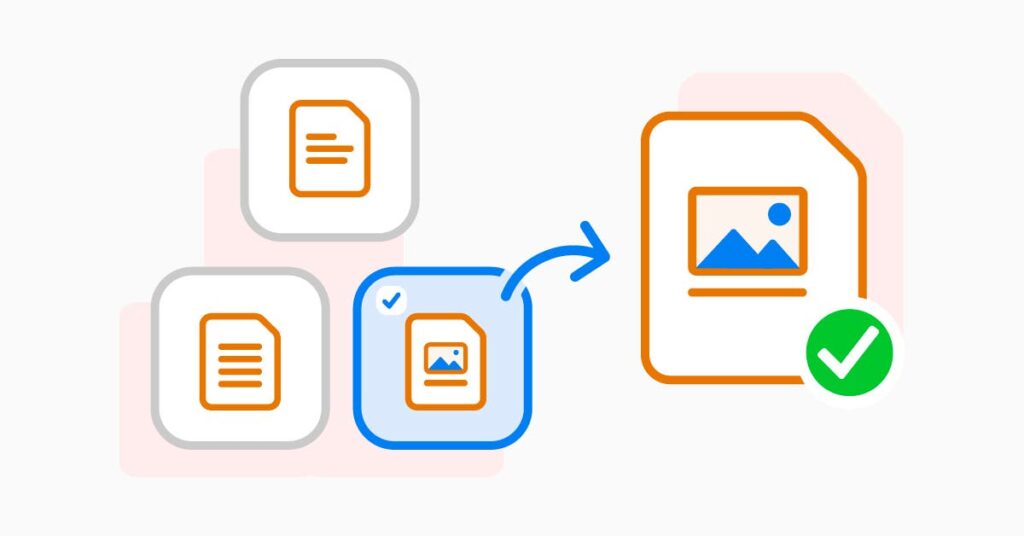
Once uploaded, the tool generates a thumbnail preview of every page in your document. This is the most important step — you can visually confirm you’re selecting the right pages instead of guessing based on page numbers alone.
Click on the thumbnails of the pages you want to extract. Most tools highlight selected pages with a checkmark, border, or color change so you can see your selection clearly before proceeding.
Step 3: Choose Your Extraction Method
Depending on the tool, you’ll typically have a couple of options:
- Extract specific pages: Select individual pages (like pages 3, 7, and 12) to pull out as a new document.
- Extract a page range: Specify a continuous range (like pages 5 to 10) if you need a consecutive block of content.
- Extract each page as a separate file: Useful when you need to split a PDF into individual single-page files rather than one combined extract.
Step 4: Process and Download
After confirming your selection, click the extract or process button. The tool generates a new PDF containing only your selected pages. Download the new file to your device, and you’re done.
The entire process usually takes under a minute, even for larger documents, since you’re not editing the actual content — just selecting which pages carry over into the new file.extract pages from pdf free
Common Mistakes to Avoid When Extracting PDF Pages
Forgetting to check page order. If you select pages out of sequence, some tools preserve your original document’s order rather than your selection order. Always preview the final extracted file before sharing it.
Ignoring file size after extraction. While extracted PDFs are generally smaller, heavily image-based pages (like scanned documents) can still result in a sizable file. If size matters, consider compressing the extracted PDF afterward.
Overlooking password-protected PDFs. If your original PDF is locked, you’ll need to remove the password before most extraction tools can process it. Make sure you have the necessary permissions before doing this with documents that aren’t yours.
Assuming all tools preserve formatting. Reputable extraction tools keep your original formatting, fonts, and embedded images intact. Lower-quality tools sometimes flatten or distort content, so it’s worth doing a quick scan of the output.
Use Cases by Audience
Students and researchers extract citation pages, reference sections, or specific chapters from academic PDFs to compile study guides without lugging around entire textbooks.
YouTubers and podcasters pull pages from interview briefs, research documents, or scripts to create cleaner reference sheets for recording sessions, or to share excerpts with collaborators without exposing the full document.
Small business owners extract specific clauses or sections from contracts, NDAs, or proposals to send targeted excerpts to clients or partners without sharing the entire agreement.
Freelancers and consultants extract relevant portions of larger reports to include in client deliverables, keeping submissions focused and professional.
HR teams and recruiters pull individual pages from offer letters or policy documents when only certain sections are relevant to a specific employee inquiry. extract pages from pdf free
Is It Safe to Extract Pages from a PDF Online?
Security is a fair concern, especially with sensitive documents like contracts or financial statements. When choosing a free online tool, look for a few signals of trustworthiness:
- The site uses HTTPS encryption (check for the padlock icon in your browser).
- The tool states clearly that uploaded files are deleted after a short period, typically within an hour.
- There’s no requirement to create an account or hand over unnecessary personal information just to extract pages.
For highly sensitive documents, an offline desktop tool or a tool that processes files locally in your browser (without uploading to a server) adds an extra layer of caution. Many modern browser-based tools now process files client-side, meaning your PDF never actually leaves your device.
It’s also worth reading the tool’s privacy policy if you’re extracting pages from documents containing financial details, medical records, or legal information. A trustworthy tool will explain exactly what happens to your file: whether it’s stored temporarily on a server, encrypted during transfer, and how long it’s retained before automatic deletion. If a tool doesn’t mention any of this, treat that as a red flag and look elsewhere, especially for anything you wouldn’t want to end up cached or indexed somewhere unexpected.
Extracting from Scanned PDFs vs Digital PDFs
Not all PDFs are created the same way, and this affects how extraction behaves in practice.
A digital-native PDF — one created directly from a Word document, Google Doc, or design software — contains actual text data along with formatting. Extracting pages from this type of file is fast and clean, since the tool is simply copying structured data into a new file.
A scanned PDF, on the other hand, is essentially a series of images stitched together, even though it looks like a normal document. Extracting pages from a scanned PDF still works the same way from a user’s perspective, but the underlying file is heavier because each page is an image rather than text. If you plan to extract pages from a scanned document and later need to copy or search the text, you’ll likely need to run the extracted pages through an OCR (Optical Character Recognition) tool first, since plain extraction doesn’t add searchable text to a scanned page.extract pages from pdf free
This distinction matters most for students working with scanned textbook chapters or older business documents that were digitized after the fact. Knowing whether your source PDF is scanned or digital-native helps you set the right expectations for file size and searchability after extraction.
How Page Extraction Helps with Content Repurposing
For creators and marketers, page extraction is often the invisible first step in a much bigger content workflow. A 25-page industry report might contain just two pages of genuinely quotable statistics. Rather than asking a collaborator to read the entire document, extracting those two pages into a shareable file makes the relevant data easy to reference, cite, or drop into a script.
This same logic applies to ebook excerpts, lead magnets, and sample chapters. Publishers and authors frequently extract a handful of pages from a full manuscript to use as a free preview, giving potential readers a taste of the content without giving away the entire book. The extracted pages remain a clean, standalone PDF that can be distributed separately from the source file, with its own file name and its own purpose.
It helps to understand where page extraction fits among other common PDF tasks:
- Splitting a PDF usually means dividing the entire document into multiple smaller files, often one per page or per section.
- Extracting pulls out only the specific pages you choose, leaving the rest behind.
- Merging combines multiple PDFs (or extracted pages) into a single new file.
- Deleting pages removes selected pages and keeps everything else, which is effectively the inverse of extraction.
Knowing the right term helps you find the right tool faster, since some platforms separate these into distinct features rather than bundling them together.extract pages from pdf free
Tips for a Smoother Workflow
If you regularly extract pages from PDFs as part of your work, a few habits make the process faster:
- Rename extracted files immediately with descriptive names (like
contract-clause-5.pdf) instead of leaving generic names likedocument-extracted.pdf. This saves time when searching for files later. - If you’re extracting pages for repurposing into content, keep a simple folder structure separating “source PDFs” from “extracted pages” so you don’t lose track of originals.
- When extracting multiple times from the same source document, double-check you’re working from the most updated version, especially with contracts or collaborative documents that change frequently.
Final Thoughts
Extracting pages from a PDF doesn’t need to involve expensive software or complicated workflows. With the right free online tool, you can pull exactly the pages you need in under a minute, while keeping your original document intact. Whether you’re trimming down a contract, building a study guide, or repurposing research for content creation, page extraction is one of those small but genuinely useful skills that saves real time once you know how to do it efficiently.extract pages from pdf free
Frequently Asked Questions
Is it really free to extract pages from a PDF online? Yes, most reputable online PDF tools offer page extraction completely free, with no hidden charges or forced trial periods. Some tools do place limits on file size or daily usage, so check the tool’s terms if you’re processing very large files or doing this frequently.extract pages from pdf free
Will extracting pages reduce the quality of my PDF? No. Extracting pages doesn’t compress, resize, or alter the content of the pages you select. The extracted file retains the same resolution, fonts, and formatting as the original document.
Can I extract pages from a PDF on my phone? Yes. Most browser-based PDF extraction tools work on mobile browsers just as well as desktop, since the process simply involves uploading a file, selecting pages, and downloading the result.
What if my PDF is password protected? You’ll need to remove the password first, provided you have the rights to access the document. Once unlocked, you can extract pages normally.
Can I extract pages and then merge them with pages from another PDF? Yes. Extract the pages you need from each source PDF separately, then use a PDF merge tool to combine the extracted files into one new document.
Does extracting pages change the original PDF file? No. Extraction creates a new file containing only your selected pages. Your original PDF remains completely unchanged and stays exactly as it was.
Is there a limit to how many pages I can extract at once? This depends on the specific tool, but most free online extractors handle anywhere from a few pages to several hundred without issue. If you’re working with an unusually large document, it’s worth testing with a smaller batch first.