
How to compress a PDF without losing quality? Managing large PDF files can be frustrating. Whether you are trying to send a document by email, upload it to a website, or save storage space, oversized PDFs create unnecessary problems. The good news is that you can compress a PDF without losing quality — and it is much easier than most people think.
In this guide, you will learn exactly what PDF compression is, why file sizes get large in the first place, and how to reduce them quickly and for free using online tools.
What Does It Mean to Compress a PDF?
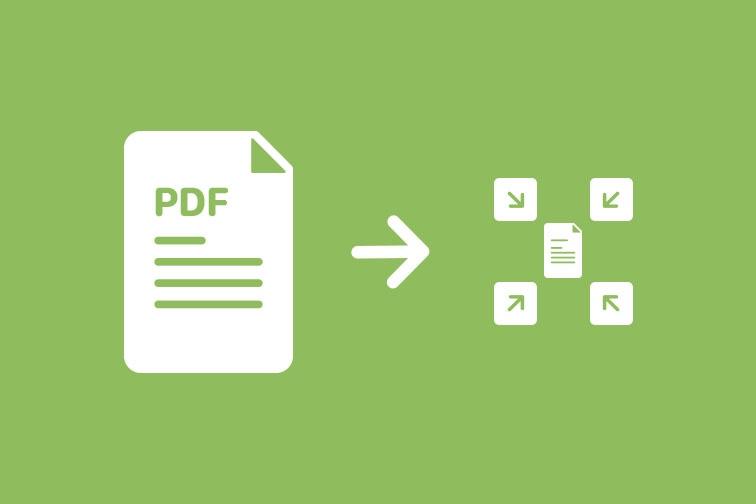
Compressing a PDF means reducing its file size while keeping the content readable and visually intact. A well-compressed PDF looks identical to the original — text stays sharp, images remain clear, and formatting is preserved.
The key is understanding that not all compression is the same. There are two main types:
Lossless compression removes hidden technical data and redundant information without touching the visible content. The quality remains the same after compression.
Lossy compression reduces file size more aggressively by slightly lowering image resolution. For most documents, this difference is invisible to the human eye, but for high-resolution print files it can be noticeable.
For everyday use — emails, web uploads, sharing documents — lossless compression is usually all you need.
Why Are PDF Files So Large?
Before compressing a PDF, it helps to understand what makes files large in the first place. The most common reasons include:
Embedded images are the biggest culprit. When a PDF contains photographs, screenshots, or graphics, each image adds significant file size. A single high-resolution image can add several megabytes on its own.
Embedded fonts add size when full font files are stored inside the document rather than just the characters actually used.
Hidden data, such as revision history, annotations, and metadata, accumulates as documents are edited multiple times.
Scanned documents are often extremely large because they save each page as a full image rather than editable text.
Understanding the cause helps you choose the right compression level for your specific file.
How to Compress a PDF Without Losing Quality Online
The fastest and easiest way to compress a PDF without losing quality is using a free online tool. You do not need to install any software, create an account, or have any technical knowledge.
Here is the step-by-step process using the free Compress PDF tool at Digital Creator Hub:
Step 1 — Open the Compress PDF tool
Visit the Compress PDF page on Digital Creator Hub. The tool runs entirely in your browser so it works on Windows, Mac, Android, and iOS devices.
Step 2 — Upload your PDF file
Click the upload area or drag and drop your PDF directly onto the page. The file will begin processing immediately.
Step 3 — Choose your compression level
Select the compression level that suits your needs. For most documents, the standard compression setting reduces file size significantly while keeping quality intact. If you need a smaller file for web use, a higher compression setting works well. For print-quality documents, choose the lowest compression to preserve maximum detail.
Step 4 — Download your compressed file
Once processing is complete, click the download button to save your compressed PDF. The entire process takes seconds.
The tool is completely free, requires no signup, and automatically deletes your file after processing to protect your privacy. how to compress a PDF without losing quality
How Much Can You Reduce a PDF File Size?
Results vary depending on the content of your PDF, but typical compression rates are:
Documents with mostly text: 10% to 30% reduction
Documents with mixed text and images: 40% to 60% reduction
Scanned documents or image-heavy PDFs: 60% to 80% reduction
For example, a 10MB scanned document can often be compressed down to 2MB or 3MB with no visible loss in quality. This makes it easy to attach to emails, upload to websites, or share through messaging apps. how to compress a PDF without losing quality
How to compress a PDF without losing quality? Tips for Getting the Best Compression Results
A few simple practices will help you get the most out of PDF compression every time.
Use the right compression level for your purpose. If you are sharing a document digitally, standard or high compression works perfectly. If you are sending a file to a printer, use minimal compression to preserve image sharpness.
Compress before sharing, not after editing. Every time you edit and resave a PDF, hidden data accumulates, increasing the file size. Compress as the final step before sharing.
Check the file size before and after. Most online tools show you the original and compressed file sizes so you can confirm the reduction before downloading.
For scanned documents, use OCR first. If your PDF is a scanned image, converting it to searchable text using OCR (optical character recognition) before compression can dramatically reduce file size because the tool converts image pages into text-based pages, which are much smaller. how to compress a PDF without losing quality
Common Mistakes to Avoid When Compressing PDFs
Over-compressing image-heavy files. Applying maximum compression to a PDF that contains detailed charts, photographs, or diagrams can make images appear blurry. Always preview the result before finalising.
Compressing an already compressed file. If a PDF has already been compressed once, compressing it again will have minimal effect and can sometimes slightly degrade image quality without meaningfully reducing file size. how to compress a PDF without losing quality
Using untrusted tools with sensitive documents. Always use reputable tools that clearly state they delete your files after processing. Digital Creator Hub processes all files securely and removes them automatically after download.
When to Use Other PDF Tools Alongside Compression
Sometimes compression alone is not enough to solve your document management problems. Here are situations where combining tools gives the best results:
If your PDF has too many pages making it unnecessarily large, use the Split PDF tool to divide it into smaller sections before compressing each part separately.
If you need to send several separate compressed PDFs as one file, use the Merge PDF tool to combine them after compression.
If your PDF contains pages that are no longer needed and adding to the file size, use the Delete PDF Pages tool to remove them before compressing.
If you need to protect your compressed document before sharing it, use the Protect PDF tool to add a password after compression. how to compress a PDF without losing quality how to compress a PDF without losing quality
Using these tools together gives you complete control over your documents and keeps file sizes manageable at every stage.
Why Compressing PDFs Matters for Creators and Professionals
For digital creators, bloggers, freelancers, and business owners, PDF file management is a regular part of daily work. Large files slow down email delivery, fail to upload to platforms with size limits, and consume unnecessary storage space.
By making PDF compression a standard part of your workflow, you save time, avoid technical problems, and present a more professional image to clients and colleagues. A clean, compact, well-organised document reflects attention to detail. how to compress a PDF without losing quality
The best part is that with free online tools available today, there is no reason to struggle with oversized PDFs. Compressing a PDF without losing quality takes less than a minute and costs nothing.
Start Compressing Your PDF for Free
Now that you know exactly how to compress a PDF without losing quality, you can put it into practice immediately. No software installation, no technical knowledge, and no cost involved.
Use the free Compress PDF tool at Digital Creator Hub and reduce your file size in seconds. Your documents will be smaller, sharper, and easier to share — without sacrificing a single detail. how to compress a PDF without losing quality